
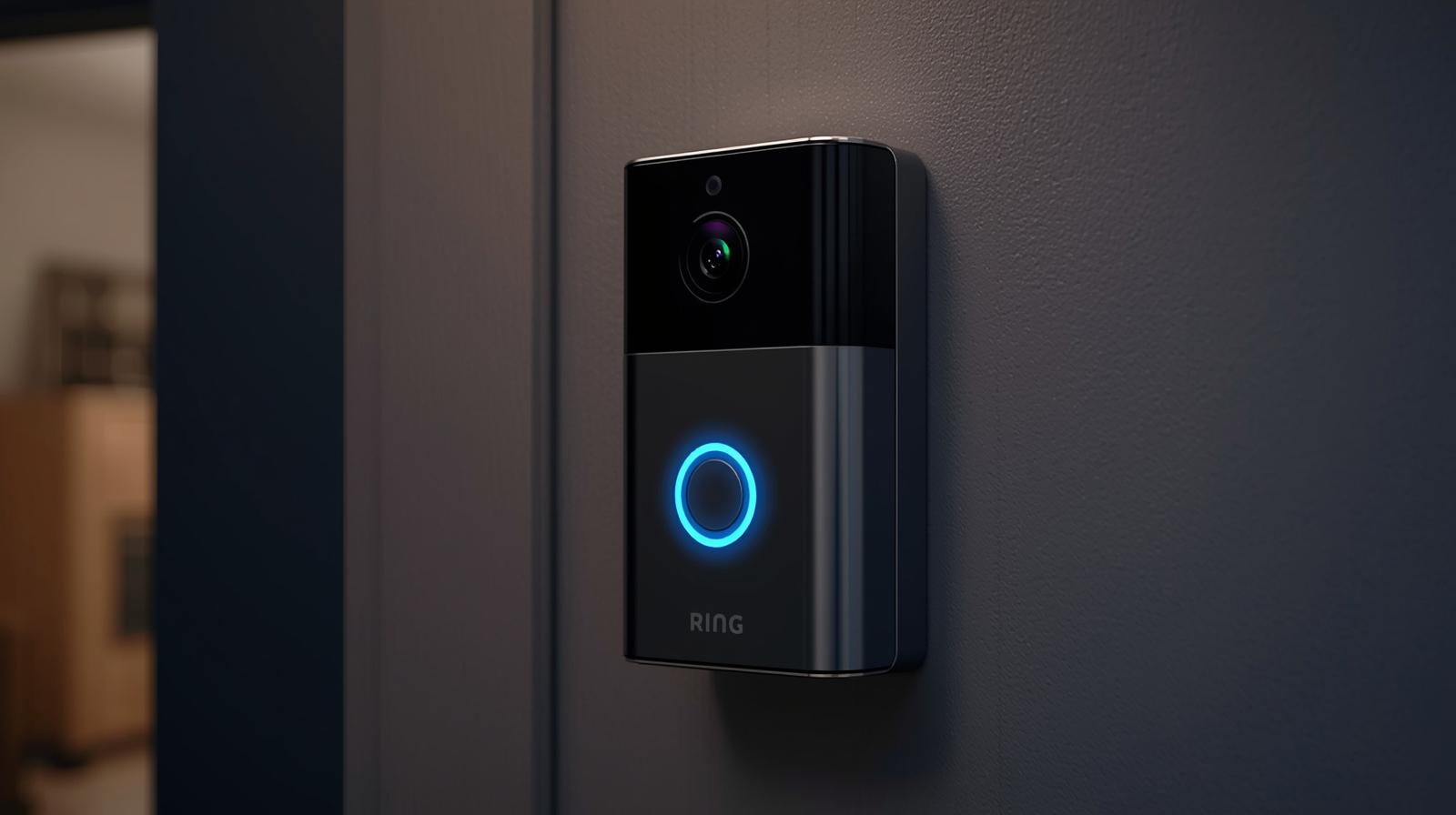
Is your Ring doorbell flashing blue but not working? You press the button, but nothing happens.
No live view. No sound. Just a blue light spinning or blinking.
This can be very annoying, especially when someone is at your door. The good news? Most of the time, the fix is simple and fast.
Quick Answer
If your Ring doorbell is flashing blue but not working, it usually means:
- Wi-Fi is weak or lost
- Battery is low
- Setup mode is stuck
- Power wires are loose
- The device needs a reset
Check Wi-Fi and battery first. Then restart or reset the device.
Pro-Tip: I always check the Ring app first. It often shows the real problem in seconds.
1. Weak or Lost Wi-Fi Signal
Ring needs strong Wi-Fi to work.If the signal is weak, it may flash blue but not respond. Walls, metal doors, and distance can block the signal.
How to Fix It
- Open the Ring app
- Go to Device Health
- Check Wi-Fi strength (RSSI number)
- Move your router closer
- Restart your router
If needed, use a Wi-Fi extender.
Pro-Tip: I place my router higher on a shelf. This helps signal travel better.
2. Low or Dead Battery
If you have a battery model, low power can cause blue flashing. The doorbell may turn on but not fully work. Cold weather can also drain the battery fast.
How to Fix It
- Remove the Ring doorbell
- Charge the battery fully
- Wait for solid green light
- Put it back in place
If the battery drains fast, it may be old.
Pro-Tip: I charge my battery before it drops below 30%. This keeps it healthy.
3. Stuck in Setup Mode
A spinning blue light often means setup mode. If setup fails, it can get stuck there. This happens after Wi-Fi changes or power loss.
How to Fix It
- Open the Ring app
- Remove the device from the app
- Press and hold the setup button for 15 seconds
- Wait for restart
- Set it up again
Make sure you use the correct Wi-Fi password.
Pro-Tip: Stand close to the router during setup. It makes things smoother.
4. Loose Power Wires (Hardwired Models)
If your Ring is wired, loose wires can cause problems. It may flash blue but not connect or record. Power flow must stay steady.
How to Fix It
- Turn off power at the breaker
- Remove the faceplate
- Check both wires
- Tighten loose screws
- Turn power back on
If wires look damaged, call an electrician.
Pro-Tip: I gently tug each wire to make sure it is tight before closing it.
5. Software Glitch or Freeze
Like phones, Ring can freeze. A small bug can stop it from working. The blue light may stay on or blink oddly.
How to Fix It
- Press and hold the setup button for 20 seconds
- Let it restart fully
- Wait 1–2 minutes
- Check the app again
If needed, remove and add the device again.
Pro-Tip: A full reset fixes most odd light issues. I use this when nothing else works.
Step-by-Step Quick Fix Plan
Follow these steps in order:
- Check Wi-Fi in the Ring app
- Restart your router
- Charge the battery (if battery model)
- Check power wires (if wired)
- Reset the device
Most users fix the issue before step 5.
When Should You Buy a New Ring Doorbell?
Sometimes repair is not worth it. You may need a new one if:
- The device is over 4–5 years old
- Battery no longer holds charge
- It will not reset
- Video fails often
- Wi-Fi chip seems dead
New models have better motion detect and clearer video. They also connect faster and stay stable. If your unit keeps failing, upgrading may save time and stress.
Look for models with:
- Strong Wi-Fi support
- Good night view
- Easy battery swap
- Weather proof build
Pro-Tip: I suggest buying during holiday sales. Prices drop a lot in the US.
A flashing blue Ring doorbell is usually a small issue. Start with Wi-Fi and battery. Most fixes take less than 10 minutes. If you need help picking a new one, I can guide you step by step.